 Firetool
Before you start
- Connect the account for each project in Firetool. The project lists in every copy dialog show the projects of all connected accounts, so the source and the target can belong to different accounts.
- The account used for the source must be allowed to read it, and the account used for the target must be allowed to write to it. Firetool reads with the first and writes with the second.
- The target database must already exist. Firetool doesn't create databases; it only lists the ones a project has.
Firetool has four ways to copy, from biggest to smallest: Data transfer for several collections at once, the collection's right-click menu for one collection, Copy to… for documents in a query, and Duplicate database… for every collection in a database.
Data transfer: many collections at once
- Choose Tools → Data transfer… (Ctrl+Shift+T). Or right-click a database (or a project, for its default database) in the sidebar and choose Transfer collections…; that fills in the source for you.
- Under Source, choose the project and database. Its top-level collections are listed.
- Under Target, choose the project and database to copy into. Badges show whether the target is marked read-only or production.
- Tick the collections to copy, or tick the box in the header to select them all.
- Set the options:
- Include subcollections (on by default) copies every subcollection under each document, at any depth.
- Custom target paths adds a Target path column. Each collection goes to the same path in the target unless you type another one, such as
orders_2025orusers/alice/orders. It must be a collection path. - Empty the target collections first deletes every document in each target collection, with its subcollections, before copying.
- Limit documents per collection copies only the first N documents of each collection (each with its subcollections). Leave it empty for no limit.
- If a document already exists: Replace it overwrites documents with the same ID in the target; Keep it: add only new documents leaves them as they are.
- Choose Start transfer. A summary of what will happen is shown; confirm with Start transfer.
- Each collection's Status shows how many documents were copied. When it finishes, a line sums up the collections done, documents copied, kept and failed.
Choose Stop at any time; Firetool stops after the current batch and keeps what's done. The button then reads Resume transfer, which carries on where it stopped and skips documents already copied. Changing the source, target, options or ticked collections starts a fresh transfer instead.
The source isn't changed. Copying a collection onto itself (same database, same path) is refused: choose another target, or give it a new path with Custom target paths.
Copy, move, rename or duplicate one collection
Right-click a collection in the sidebar. The menu has Rename collection…, Duplicate collection…, Copy collection to… and Move collection to….
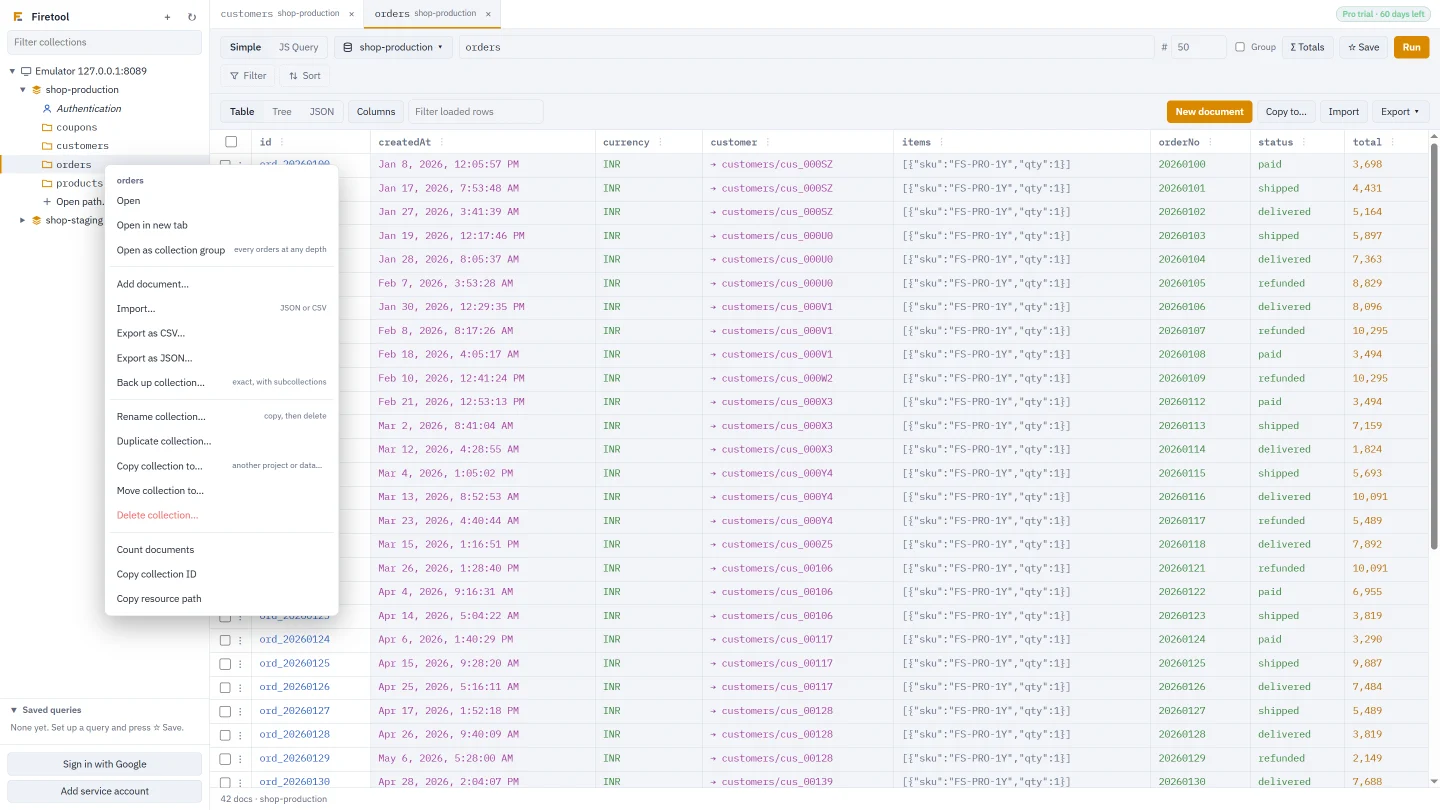
Copy collection to… and Move collection to…
- Choose To project and Database.
- Check To collection. It starts as the same path; change it to copy under another name or path.
- Include subcollections is on. For a move it's always on, so nothing is left behind.
- Under If a document already exists there, choose Replace it or Keep it, skip the copy.
- Choose Copy or Move. If the target collection already has documents and you chose Replace, Firetool tells you how many and asks you to confirm with Replace them.
Rename collection… and Duplicate collection…
Both work in the same database and under the same parent. Type the New name (Rename) or the Name of the copy (Duplicate, which suggests name_copy). The line below shows the old and new path. A name can't contain a slash, or start and end with __. Rename always includes subcollections; Duplicate lets you leave them out. Both replace documents that already exist at the new path.
How Move and Rename work
Firestore has no move or rename. Firetool copies every document to the new place, then deletes the originals, and asks you to confirm first. It deletes only what it copied:
- If any copy fails, no originals are deleted. Resume retries the failed documents.
- If you chose Keep it, skip the copy and a document with the same ID was already in the target, that original is kept, and Firetool tells you how many were kept.
- Deleted originals are saved in the audit log so they can be restored, unless your policy turns copies off.
While a job runs, Cancel stops it after the current batch, and the main button becomes Resume.
Copy selected documents with Copy to…
- Open a collection and choose Run to load the query you want.
- Optionally select rows. Then choose Copy to… in the toolbar.
- Choose what to copy: Selected rows, Rows shown, or All documents matching the query. "All" uses the query of the last Run and reads every match, not only the rows shown.
- Choose To project, type the Database and the To collection path.
- Tick Include subcollections (copied recursively) if you want them; it's off by default here.
- Choose Replace it or Keep it, skip the copy, then Copy. When it's done, Open target opens the copied collection.
In a collection group tab, every document keeps its full path in the target, so users/alice/orders/1 goes to the same path there. A collection group can only be copied to a different project or database.
Duplicate a whole database
- Create the target database first, in the Firebase console (Firestore, Create database). The dialog links to it.
- Right-click the source database (or its project) and choose Duplicate database….
- Choose To project and Database. The source database itself isn't offered.
- Choose Replace it or Keep it, skip the copy, then Duplicate.
Every top-level collection is copied with all its subcollections, one collection at a time, and the progress line says which one. Stop and Resume work as above: finished collections aren't copied again.
References are pointed at the target
Document IDs and every value are copied exactly. When the target is another project or database, a reference field that points into the source database is changed to point to the same path in the target. References to other databases are left alone.
References keep their path: they aren't changed by Rename or Duplicate, or when you copy to a different path. A reference to orders/123 still points to orders/123 after you rename orders.
Reads, writes and time
Firestore bills each copied document as a read in the source and a write in the target; a move or rename adds a delete for each original. Finding subcollections costs extra requests.
- Copy, Move, Rename and Duplicate collection, and Copy to… with all matching documents, count the documents first. Over 10,000 documents, Firetool shows the number and asks before reading.
- Writes go in batches of up to 500. Writes that fail only because Firestore is busy are retried with a pause.
- Tools → Tasks (Ctrl+Shift+J) lists each job with the reads, writes and deletes it cost, and can stop a running one.
Production, read-only and Pro
- Copying needs Firetool Pro. In the Free edition the writes are refused and you're asked for a licence key.
- A target marked read-only is refused before anything is read. A Move or Rename out of a read-only database is refused too, since it would delete the originals.
- If the target is marked production, you type its project ID once before the job starts. Deleting the originals of a move from a production project asks the same.
- Every write goes through the same checks as any other change: roles, policy rules and the audit log.
Questions
Can I copy between two Google accounts?
Yes. Connect both accounts (or service account keys) in Firetool. The source is read with its own account and the target is written with the target project's account.
What happens if the copy stops halfway?
What was copied stays copied. Choose Resume (or Resume transfer) with the same settings, and Firetool carries on with the documents that didn't make it, without copying the others again.
Does Rename update references to the old collection?
No. References keep the path they had. Update them yourself afterwards, for example with a bulk field change or a JS Query.
Related
- Firestore data transfer: what Firetool can copy and move between projects.
- Back up and restore: keep a copy in a file and put it back later.
- Bulk field changes: set, rename or delete a field in many documents.
- Roles and production safety: read-only and production projects.