 Firetool
Export from a tab
- Open a collection and set up the query: add filters with Filter, a sort with Sort, then choose Run.
- Choose Export ▾ in the toolbar above the results. The menu has a CSV part and a JSON part, each with three choices:
- All matching documents (ignores limit): every document the query matches, not just the rows loaded in the table. Firetool reads them in pages of 1,000.
- Rows shown: the rows in the table right now. If you typed in Filter loaded rows, only the rows that are still visible.
- Selected rows: the rows you ticked. This choice is greyed out until you tick at least one.
- Pick a location in the save dialog and choose Save. The suggested name is the project, the collection path and the date and time in UTC, for example
shop-production_orders_2026-10-01-09-30.csv. - When it's done, the message at the bottom offers Show in folder.
At the bottom of the menu, Flatten nested fields in CSV (address.city) is ticked by default. Firetool remembers your choice. The menu also has Schedule this export…, which saves the same query as a scheduled export.
Exports need Firetool Pro. Every export is written to the audit log with the collection, the number of documents, the format and the file. Exports still work in a project marked read-only, because they don't change anything.
From the collection menu
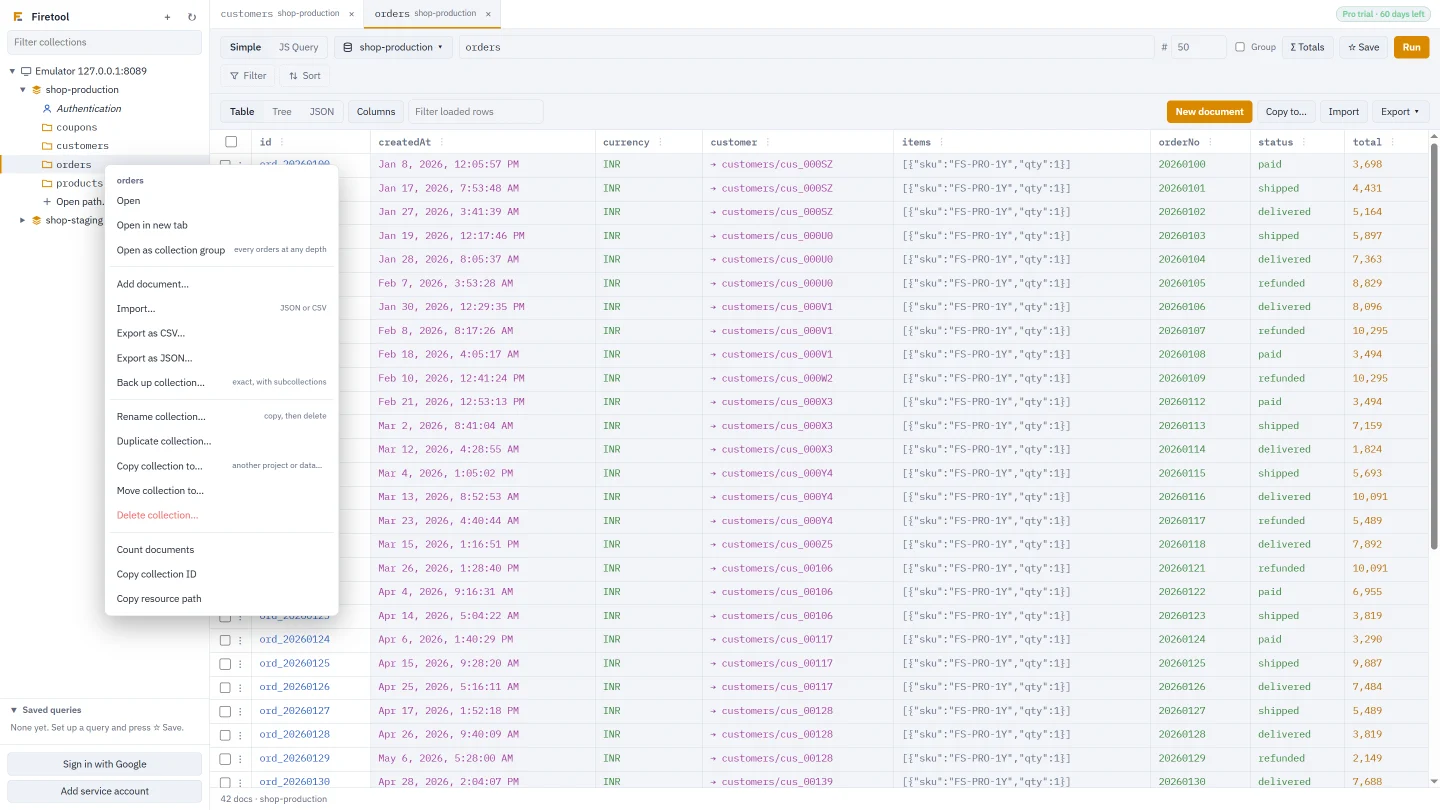
Right-click a collection in the sidebar and choose Export as CSV… or Export as JSON…. Firetool opens the collection in a tab and exports all matching documents, the same as All matching documents.
What's in a CSV file
CSV files are saved as UTF-8 with a byte order mark (BOM), so Excel shows names in Hindi, Tamil, accents and other non-English text correctly when you double-click the file. Lines end with Windows line breaks (CRLF). A value that contains a comma, a double quote, a line break, or starts or ends with a space is put in double quotes.
The first column is __id, the document ID. Then comes one column for every field found in any exported document, in the order Firetool first meets them. A document without a field gets an empty cell in that column.
With Flatten nested fields in CSV ticked, a map becomes one column per field inside it, named with dots: a field address holding city and pin becomes the columns address.city and address.pin. Maps inside maps go deeper the same way (address.geo.zone). With it unticked, the whole map is one column holding JSON text.
| Firestore type | In the CSV cell |
|---|---|
| String, number, boolean | As is: Hyderabad, 3698, 12.5, true |
| Very large integer (beyond 253) | Its exact digits |
| Null | An empty cell |
| Timestamp | The time as stored, in UTC: 2026-01-08T06:35:57.123456Z |
| Reference | The document path: customers/cus_000SZ |
| Geopoint | Latitude and longitude: 17.385,78.4867 |
| Bytes | Base64 text |
| Array | JSON text: [{"sku":"FS-PRO-1Y","qty":1}] |
| Map | Columns with dots (flattened), or JSON text. An empty map is {}. |
Inside arrays and unflattened maps, timestamps, references and geopoints are written as plain text, in the same form as in the table above. The CSV file can be read back with Import, which understands dotted column names and lets you set each column's type.
What's in a JSON file
A JSON export is a list with one object per document, indented for reading. Each object starts with "__id", then the document's fields. Maps and arrays stay nested. Values that plain JSON can't hold use the same notation as Firetool's JSON editor:
[
  {
    "__id": "ord_20260100",
    "createdAt": { "$timestamp": "2026-01-08T06:35:57.123456Z" },
    "customer": { "$ref": "customers/cus_000SZ" },
    "items": [ { "sku": "FS-PRO-1Y", "qty": 1 } ],
    "status": "paid",
    "total": 3698
  }
]
{"$timestamp": "…"}: a timestamp, as stored (microseconds kept).{"$ref": "…"}: a reference, as a path in the same database.{"$geo": {"lat": …, "lng": …}}: a geopoint.{"$bytes": "…"}: bytes, as base64.{"$int": "…"}: an integer too large for a JavaScript number, as exact digits.{"$double": "NaN"},"Infinity"or"-Infinity": numbers JSON can't hold.
The same file can be imported again, into the same or another collection, and the values keep their types, with one exception: a decimal that holds a whole number, such as 10.0, is written as 10 and comes back as an integer. For an exact copy, use a backup.
Export a collection group
A collection group is every collection with the same name at any depth, such as every orders subcollection under every user. Right-click the collection and choose Open as collection group, or tick Group in the query bar, then Run and export as usual.
Because documents from different parents can share an ID, a collection group export adds the full document path: a __path column after __id in CSV, and a "__path" key in JSON (for example users/alice/orders/o1).
Example: a filtered query for Excel
Say you want every paid order in a spreadsheet.
- Open
orders. Choose Filter, pick the fieldstatus, the operator ==, and typepaid. - Optionally choose Sort and pick
createdAt, so the rows come out in date order. - Choose Run. Check that the first rows look right.
- Choose Export ▾. Leave Flatten nested fields in CSV (address.city) ticked, so each part of a map gets its own Excel column.
- Under CSV, choose All matching documents. If more than 10,000 documents match, confirm the read count.
- Save the file and choose Show in folder. Double-click it to open it in Excel.
The first lines look like this:
__id,createdAt,currency,customer,items,orderNo,status,total
ord_20260100,2026-01-08T06:35:57.123456Z,INR,customers/cus_000SZ,"[{""sku"":""FS-PRO-1Y"",""qty"":1}]",20260100,paid,3698
Excel decides how to show each cell. It may show long numbers in scientific notation or drop leading zeros. The file itself keeps the values exactly as exported.
Export Firebase Authentication users
- Click Authentication under a project in the sidebar. Firetool lists the users, 500 at a time; choose Load more for the next 500, or use Find to look up particular users.
- Choose Export CSV.
The file holds the users that are listed in the panel at that moment, not every user in the project. Its columns are uid, email, phoneNumber, displayName, providers, createdAt, lastSignInAt, disabled, emailVerified and customClaims (as JSON). Like the Firestore CSV it is UTF-8 with a BOM. Passwords are never part of it.
Read costs and limits
- Firestore bills one read for every document exported with All matching documents. Rows shown and Selected rows use rows already loaded, so they read nothing more.
- Before an All matching documents export, Firetool counts the matching documents (a count costs one read per 1,000 documents). Over 10,000, it asks before going on and shows the number of reads.
- An All matching documents export runs as a job in Tasks (Ctrl+Shift+J), with the number of documents it fetched. The documents-read counter in the status bar includes it too.
- The whole export is built in memory before it's saved, so a very large collection needs enough free memory.
- Exports are a Pro feature. The Free edition can browse and query but not export.
- Policy can turn exports off. In Tools → Policy and roles, a project's Allow exports (CSV/JSON) box, when unticked, refuses every export from that project, including Authentication users and scheduled exports. IT can set the same rule for every PC with a machine policy.
Questions
Does Export use the limit I set in the query bar?
No. All matching documents ignores the limit and exports everything the filters match. To export only what you loaded, choose Rows shown.
Why does my CSV have columns like address.city?
Flatten nested fields in CSV (address.city) is ticked in the Export ▾ menu. Untick it to keep each map in a single column as JSON text.
Should I use CSV or JSON?
CSV for spreadsheets and reports. JSON when the data goes back into Firestore or into code, because it keeps timestamps, references, geopoints and large integers as their real types. For an exact copy with subcollections, use a backup instead.
Related
- Firestore import and export: what Firetool's import and export can do.
- Import CSV or JSON into Firestore: load an exported file back in.
- Schedule Firestore exports: run the same export every hour, day or week.
- Back up and restore: exact copies with subcollections.