 Firetool
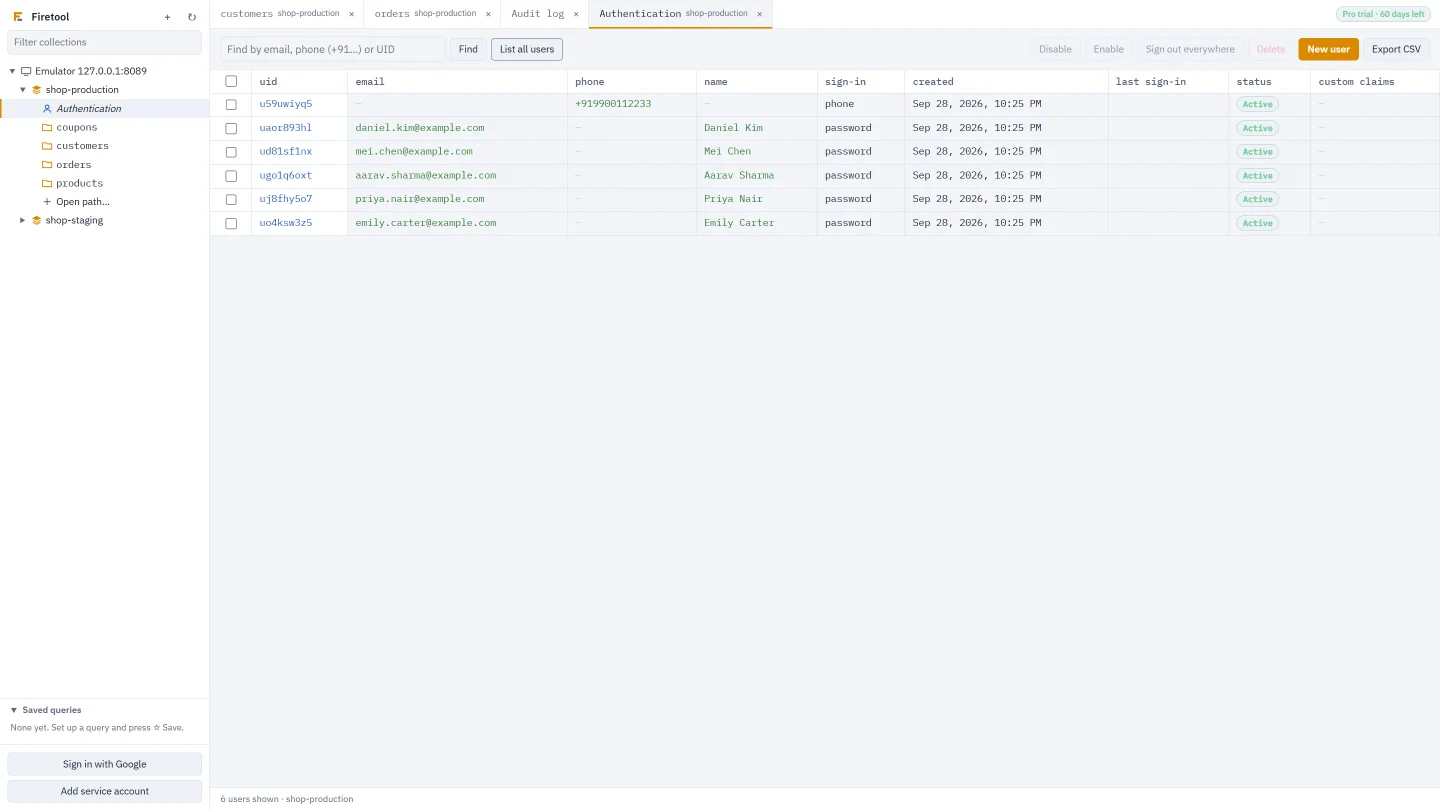
Open Authentication
- In the sidebar, expand your account, then the project.
- Click Authentication, the first item under the project, above its collections or databases.
- An Authentication tab opens for that project and lists its users straight away.
Each project has its own Authentication tab. Users belong to the whole project, not to one database, so a project with several databases still has one Authentication item.
With the Firebase Emulator, the item appears only if you gave the Auth emulator address. In File, Connect to emulator, fill in Auth emulator address (optional, for users), usually 127.0.0.1:9099. When Firetool picks up an emulator from FIRESTORE_EMULATOR_HOST, it takes the Auth address from FIREBASE_AUTH_EMULATOR_HOST.
If you see "Firebase Authentication isn't set up in this project yet.", turn on Authentication for the project in the Firebase console first.
Find a user
- Type into the box marked Find by email, phone (+91…) or UID.
- Press Find or Enter.
Firetool decides what you typed: anything with an @ is looked up as an email address, anything starting with + as a phone number, and the rest as a UID. Phone numbers need the country code, for example +919876543210. If nothing matches you see No users found.
List all users
- Choose List all users. Firetool loads 500 users and shows them newest first.
- If the project has more, a Load more button appears at the bottom right. Each press adds the next 500.
The table shows uid, email, phone, name, sign-in (the providers, such as password or phone), created, last sign-in, status (Active or Disabled) and custom claims. The status bar counts the users shown. Finding and listing users works in the Free edition and costs no Firestore reads.
Create a user
- Choose New user.
- Fill in what you need: UID (optional) (leave it empty for an automatic UID), Email, Phone (E.164, e.g. +919876543210), Display name and Password.
- Tick Email verified or Account disabled if they apply.
- Add Custom claims if the user needs them (see below).
- Choose Create user. The new UID is shown and the user is added to the top of the list.
Creating, editing, disabling, deleting, making links and exporting users need Pro. The Free edition can find and list them.
Edit a user
- Click the user's UID in the table. The Edit user window opens, with the UID, sign-in providers, created date and last sign-in at the top.
- Change Email, Phone, Display name, Email verified or Account disabled.
- To set a password, type it in New password (leave empty to keep).
- Choose Save changes. Only the fields you changed are sent; if nothing changed, the window just closes.
Custom claims
Custom claims are extra values on a user's ID token that your security rules and back end can check. In New user or Edit user, type them in Custom claims (JSON, used in security rules) as one JSON object:
{
  "role": "support",
  "region": "south"
}
The box must hold an object, not a list or a plain value; otherwise Firetool says so and saves nothing. To remove all claims, empty the box and save. The user gets new claims the next time their app refreshes its token.
Password reset and verification links
- Open the user with Edit user. The user needs an email address.
- Choose Password reset link, or Verification link (shown only while the email isn't verified).
- Choose Copy link and send it to the user yourself.
Firebase doesn't email these links when Firetool asks for them. Anyone with the link can use it, so share it only with that user. The audit log records that a link was made, but not the link itself.
Disable, enable or sign out everywhere
- Tick the users in the first column, or tick the header box to select every user shown.
- Choose Disable, Enable or Sign out everywhere.
A disabled user can't sign in until enabled again. Sign out everywhere revokes the user's refresh tokens, so they have to sign in again on every device. Each job is listed in Tools, Tasks.
Delete users
- Tick the users to delete.
- Choose Delete, then confirm.
Deleting can't be undone. The audit log keeps a copy of each account's details (for up to 1,000 accounts in one delete), but users can't be restored from it. If some accounts couldn't be deleted, Firetool says how many and why, and leaves them selected.
Export users to CSV
- Show the users you want: List all users and Load more until the button goes away for everyone, or Find for one.
- Choose Export CSV and pick where to save it.
The file is named <project>_auth-users_<date>.csv and has the columns uid, email, phoneNumber, displayName, providers, createdAt, lastSignInAt, disabled, emailVerified and customClaims. It opens in Excel. Only the users shown are exported, never passwords. The export is recorded in the audit log, and it's refused if the project's policy turns exports off.
Rules and the audit log
- Viewer role: you can find, list and open users, but the change buttons are off.
- Read-only project: no user changes for anyone. A read-only mark on one database doesn't cover users; mark the whole project.
- Production project: deleting users asks you to type the project ID first, once per operation.
- Reasons and limits: if the project asks for a reason for every change, user changes ask too, and the limit on how many items one delete may remove counts users.
In Tools, Audit log, user changes appear as Created user, Changed user, Deleted user and Made a user link, with the names of the fields that changed. Passwords are never written to the log. See Roles and production safety for setting these rules.
Users in JS Query
JS Query scripts (Pro) get an auth object in the Admin SDK style. Its calls go through the same rules and audit log as the Authentication tab:
| Call | What it does |
|---|---|
auth.getUser(uid) | One user by UID |
auth.getUserByEmail(email) | One user by email |
auth.getUserByPhoneNumber(phone) | One user by phone number |
auth.listUsers(maxResults, pageToken) | A page of users (up to 1,000) and the next pageToken |
auth.createUser(props) | Creates a user |
auth.updateUser(uid, props) | Changes a user |
auth.setCustomUserClaims(uid, claims) | Sets custom claims |
auth.revokeRefreshTokens(uid) | Signs the user out everywhere |
auth.deleteUser(uid), auth.deleteUsers(uids) | Deletes one or many users |
auth.generatePasswordResetLink(email), auth.generateEmailVerificationLink(email) | Returns a one-time link |
// Users who signed up with an example.com address, from the first page
const { users } = await auth.listUsers(1000);
return users.filter((u) => u.email.endsWith("@example.com"));
More in JS Query.
Questions
Why is there no Authentication item under my emulator project?
The emulator was added without an Auth emulator address. Remove it, then add it again with File, Connect to emulator, and fill in Auth emulator address (optional, for users), for example 127.0.0.1:9099.
Can I bring users in from a file?
No. Firetool has no user import. Create users one by one with New user, or in a JS Query script with auth.createUser().
Related
- Firebase Authentication user manager: what the Authentication tab can do.
- Roles and production safety: Viewer and Editor roles, read-only and production projects.
- JS Query: scripts with
dbandauth. - Connect to Firestore: Google sign-in, service account keys and the emulators.