 Firetool
Everything on this page works in the Free edition, except creating and deleting composite indexes, which needs Pro.
Open a collection
- In the sidebar, expand your account and project. If the project has more than one database, expand the database too.
- Click a collection. It opens in its own tab and runs straight away, showing the first 50 documents.
- To open a deeper path such as
users/alice/orders, right-click the project or database and choose Open path…, or use Open path… at the end of the collection list.
Each tab keeps its own query, and your tabs come back the next time you open Firetool. Right-click a collection and choose Open in new tab to have the same collection open twice with different filters.
The path box
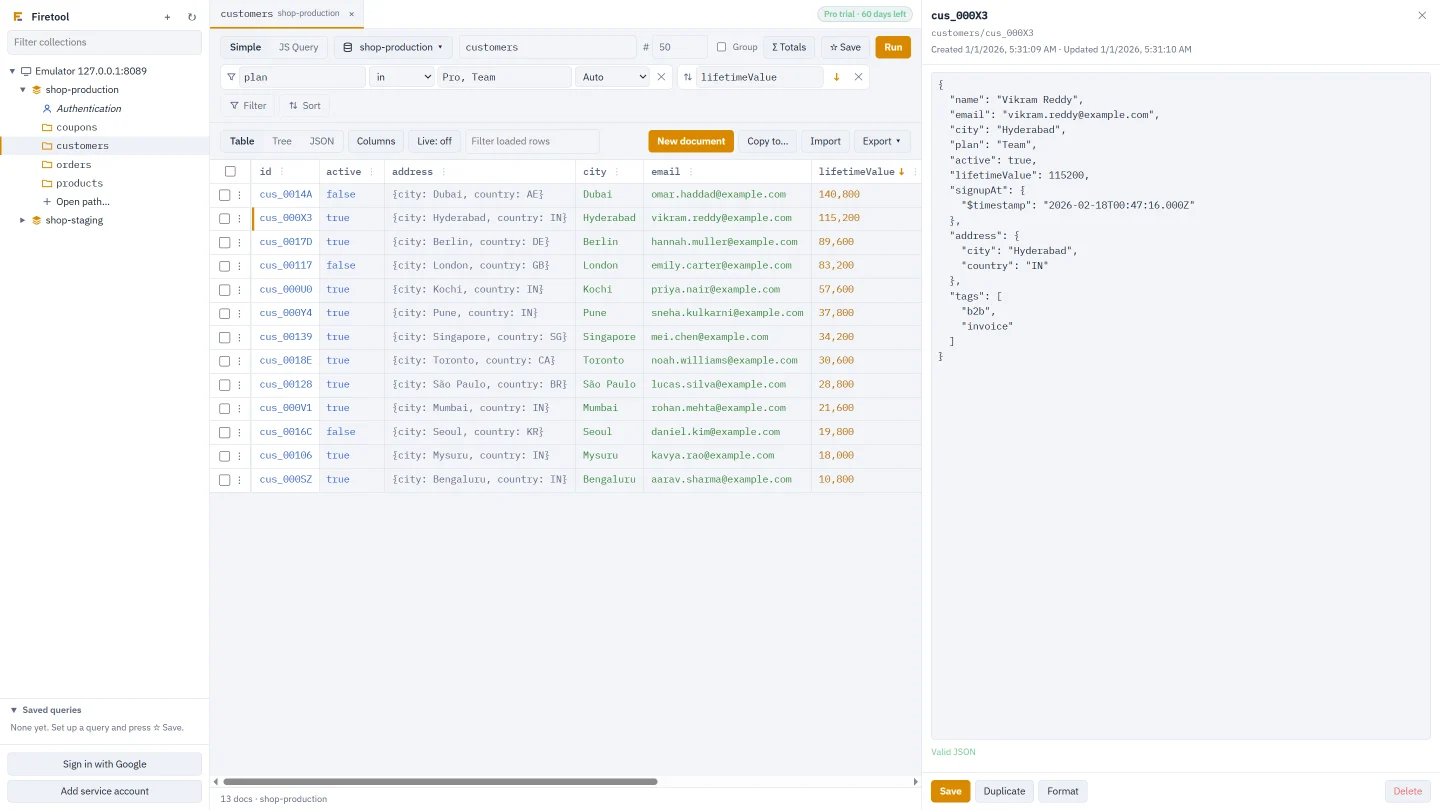
The query bar starts with Simple and JS Query (see JS Query), the project button, and the path box. The path box holds the collection the tab reads.
- Click it or start typing to see suggestions: top-level collections, or the subcollections under a document once you type
users/alice/. - After a collection name and a slash, it suggests the IDs of the documents loaded in the tab.
- If you enter a document path (an even number of parts, such as
users/alice) and run, Firetool shows its collection and opens that document in the editor.
Add filters
- Choose Filter. A new line appears with a field box, an operator, a value box and a value type.
- Type the field name, or pick it from the suggestions. Use dots for a field inside a map, such as
address.city. Choose__name__to filter on the document path. - Choose the operator (the table below lists them).
- Type the value, or pick one of the values found in the loaded documents.
- Check the value type. Auto guesses from what you type; when you pick a field, Firetool sets the type the field has in your data. The other types are String, Number, Boolean, Timestamp, Reference, Null and JSON.
- Remove a filter with its ✕.
| Operator | Matches documents where the field |
|---|---|
== / != | equals / doesn't equal the value |
< <= > >= | is less than, at most, greater than, at least the value |
array-contains | is an array that contains the value |
array-contains-any | is an array that contains any value in the list |
in / not-in | equals one of / none of the values in the list |
is null / is not null | is null / is anything but null (no value box) |
For in, not-in and array-contains-any, type the list as a, b, c or as a JSON array such as ["a", "b"]. In a JSON array with the Auto type, values in quotes stay text, so IDs like "007" aren't turned into numbers.
The type matters: a number stored as text only matches with the String type. If nothing matches, Firetool reminds you to check the field names and value types.
Match all or any
With two or more filters, a box appears before them: Match all filters (AND, every filter must match) or Match any filter (OR, at least one must match).
Sort and limit
- Choose Sort and type or pick a field. Without a sort, documents come in document ID order.
- Click the arrow to switch between ascending (↑) and descending (↓). Add more sorts for ties.
- Set the number in the # box: how many documents to read. It starts at 50 and goes up to 10,000.
You can also sort or filter from a column: click the ⋮ in its header and choose Sort ascending, Sort descending, Filter by this field… or Only docs that have it. Right-click a cell for Filter … == this and Filter … != this, which add the filter and run.
Collection groups
Tick Group in the query bar to query every collection with that name, at any depth: orders then means users/alice/orders, users/bob/orders and so on. Or right-click a collection in the sidebar and choose Open as collection group. In a group tab the first column shows each document's full path. To add or import documents, open one of the collections by its full path, because a group has no single place to write to.
Run and read the results
- Choose Run, or press Enter in any box of the query bar (Ctrl+Enter works too).
- Switch between Table, Tree and JSON above the results. The tree and JSON views are for reading; edit in the table or the document editor.
- The status bar shows how many documents were loaded, with a + when there are more. Load more reads the next batch of the same size.
To keep the window quick, the views draw 500 rows at a time. Below them, Show 500 more rows draws the next ones; they're already loaded, so this reads nothing from Firestore.
- Filter loaded rows searches the rows already loaded, without a new query.
- Clicking a column header sorts the loaded rows (▲ ▼). An ↑ or ↓ in a header shows the field the query itself is sorted by.
- Columns hides or shows columns.
Changes in the query bar count only after you run them. Until then, Load more, Live, exports and other jobs keep using the query of the last run.
Count, sum and average without loading
- Set up the filters you want, then choose Σ Totals.
- Choose Count, or a Sum of or Average of one of the number fields listed. Another field… lets you type any field.
- The answer appears at the bottom of the window, with Copy.
Totals cover every document the query matches, not only the loaded rows and not limited by #. Firestore works them out without sending the documents: about one read per 1,000 documents matched. For sum and average, documents without a number in that field are skipped.
See how many documents you've read
The status bar shows how many Firestore documents Firetool has read since it opened, roughly what Firestore bills as reads. Click it to see the count for each project, or choose Start again to reset it. Emulators aren't counted.
Before a job reads a whole query (an export, a copy, a backup or a bulk field change), Firetool counts the matching documents first and asks before reading more than 10,000.
Live refresh
- Choose Live: off above the results.
- Pick Every 15 seconds, Every 30 seconds, Every minute or Every 5 minutes. Choose Off to stop.
New rows flash green and changed rows flash amber, and an open document shows its latest version. Each refresh re-reads up to the first 500 rows and is billed as reads; it pauses while Firetool is minimised.
Save a query
- Choose ☆ Save in the query bar and give the query a name.
- Open the saved queries with the star icon at the bottom of the sidebar. Click one to open it in a tab and run it.
- To change a saved query, open it, adjust it and choose ★ Saved: keep the name to update it, or type a new one to save a copy. Rename or delete it with the icons on its row.
Saved queries keep the path, filters, sorts, limit and the Group setting, and are stored on this computer only. A saved JS script opens without running; press Run when you're ready.
Run the same query in another project
The project button in the query bar (with ▾) shows where the tab's query runs. Choose it to see the other databases of this project and the projects of every connected account. Pick one and the same path, filters and sorts run there. This is handy for comparing staging and production.
Composite indexes
Firestore creates single-field indexes by itself, but a query that filters on one field and sorts on another needs a composite index. When it's missing, the query fails and Firetool shows the error with its link. When it can work out the index, it also shows Create the index for this query….
- Choose Create the index for this query…, or Tools → Composite indexes…, or right-click a collection and choose Indexes… to see only that collection's indexes.
- The list shows each index's collection, fields, scope (Collection or Collection group) and state (Ready or Building).
- Under New index, check the Collection name and Queries on (this collection, or every collection with this name). Each field is Ascending, Descending or Array contains; Add field adds another. Put the fields you filter with "equals" first, then the ones you sort or filter by range, in the query's order.
- Choose Create index. Firestore takes a few minutes to build it; until then the query still fails. Use Refresh to check.
Listing indexes is free. Creating and deleting them needs Pro. On a project marked production, you're asked to type the project ID first.
How Firetool builds the query
- When you filter with a range or inequality (
<,<=,>,>=,!=,not-inoris not null), Firetool also sorts by that field, as Firestore requires, after any sorts you chose. - Sorting by a field leaves out documents that don't have it. The column menu says so ("skips docs without it"), and Totals keep the sort, so they count the same documents the table would show.
- Firetool doesn't work out an index for queries that use Match any filter: Firestore needs one per branch, so follow the link in the error instead.
Questions
Does Σ Totals read every document?
No. Firestore counts, adds up or averages on its side and bills about one read per 1,000 documents matched, so you can total a large collection without loading it.
Why does my filter match nothing?
Usually the value type: a number saved as text needs the String type, and a date needs Timestamp. Pick the field from the suggestions so Firetool sets the type from your data, and check the field name's spelling and dots.
Is there a limit to how many documents I can load?
The # box goes up to 10,000 per run, and Load more reads the next batch. To get everything a query matches into a file, use Export, which ignores the limit.
Related
- Firestore query tool: what the query bar and JS Query can do, in one page.
- Run JavaScript queries: OR filters, cursors, transactions and vector search in code.
- Edit documents: change what your query found.
- Export to CSV or JSON: save every document a query matches.