 Firetool
How the rules work
Firetool's rules are called the policy. They are checked in the app's main process for every change: document edits, deletes, imports, copies, scripts, index changes and Authentication user changes. The window can't skip them. Every change, and every attempt the rules blocked, goes into the audit log.
The policy is kept on each computer, in ~/.firetool/policy.json, unless IT has put a machine policy in place (see Machine policy for IT). The rules protect against mistakes inside Firetool only. For protection in every tool, also give support staff Google accounts with read-only Firestore access, such as the Cloud Datastore Viewer IAM role, so Firestore itself refuses their changes.
Setting up the policy and reading the audit log work in the Free edition. Changing data needs Pro, so in the Free edition everyone is effectively a Viewer.
Mark a project or database read-only or production
- In the sidebar, right-click a project and choose Project settings…. For a single database (shown when a project has more than one), right-click the database and choose Settings….
- Under Whole project, tick Read-only or Production. Under Databases, tick them for one database only.
- Choose Save. If the policy has an admin password, type it first.
The sidebar then shows read-only and prod tags, and tabs show a Production badge.
- Read-only: nobody can change data, indexes or users there from Firetool. Browsing, queries and exports still work. Read-only beats every role and the admin password unlock. A mark on the whole project covers all its databases.
- Production: deletes, scripts, bulk changes (copies, transfers, imports, field changes, restores of several documents) and index changes ask you to type the project ID before they run. You type it once per operation, not once per batch. Editing a single document doesn't ask: it is saved with a copy you can restore.
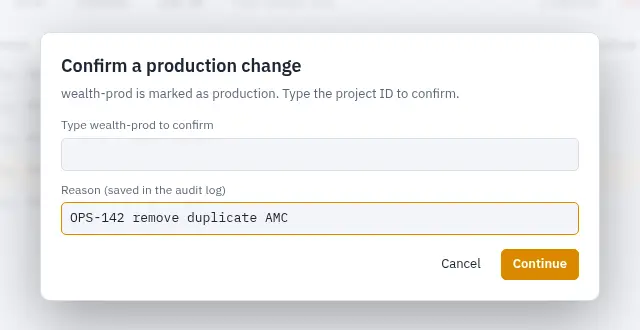
Authentication users belong to the whole project, so only the project's marks apply to them. In a production project, deleting users asks for the project ID.
Viewer and Editor roles
Open Tools, Policy and roles.
- Default role, under Everyone on this computer: Editor: can change data (the default) or Viewer: read-only.
- Roles for specific Google accounts: choose Add account, type the Google account or service account email and pick a role. That role applies in every project, whatever the project rules say.
- A project can have its own role in its project rules, or Use the default role.
Firetool uses the first that applies: the account's own role, then the project's role, then the default role. If you list any accounts and Firetool can't tell which Google account a sign-in belongs to, that sign-in gets Viewer. A Viewer can browse, query and export, but can't change anything.
Project rules
In Tools, Policy and roles, choose Add project rules and type the project ID. Each project card has:
| Setting | What it does |
|---|---|
| Production, Read-only | The same marks as Project settings. |
| Ask for a reason for every change (saved in the audit log) | Every change asks for a reason of at least 4 characters first. |
| Allow exports (CSV/JSON) | Untick to refuse exports from this project, including scheduled exports and user CSV exports. |
Also write audit entries to _studio_audit in this project | Mirrors a summary of each entry into the project, so the team shares one log. |
| Read-only collections (comma separated, * wildcard) | Nothing in these collections can be changed. |
| Collections nobody can delete from | Documents in these collections can be edited but not deleted. |
| Most documents one delete may remove (0 = no limit) | Counted over the whole operation, so it can't be passed in batches. Users count too. |
| Keep restorable copies of | See Restorable copies. |
Collection patterns: orders protects orders and everything inside it, including subcollections; cams_* matches every collection whose name starts with cams_; users/*/payments matches the payments subcollection of every user. Choose Save policy when you're done. Policy changes are recorded in the audit log.
Restorable copies
Keep restorable copies of decides which documents Firetool reads and saves in the audit log before changing them:
- Deleted documents and single edits (the default): copies of deleted documents, documents edited one at a time, removed fields, and documents changed by Set, Rename or Delete field.
- Everything that changes (more reads): also imports, copies and transfers that replace documents, restores and script updates. Each copy is one more Firestore read.
- Nothing: no copies, so nothing can be restored from the log.
Lock the policy with an admin password
- In Tools, Policy and roles, type a password of at least 8 characters in Set an admin password (needed to change this policy later).
- Choose Save policy.
From then on, the policy and Project settings can only be changed after unlocking with the password. Unlocking also lets you make changes as an Editor for the rest of the session, except in read-only projects. Lock now locks it again, and Remove admin password takes the password off. Unlocks and wrong passwords are recorded in the audit log. Without a password, anyone using this computer account can change the policy.
Machine policy for IT
To apply the same rules on every PC, set them up on one computer, choose Save policy file for IT… in Tools, Policy and roles, and copy the file to:
| System | Machine policy file |
|---|---|
| Windows | C:\ProgramData\Firetool\policy.json |
| macOS | /Library/Application Support/Firetool/policy.json |
| Linux | /etc/firetool/policy.json |
When this file exists, Firetool uses it instead of the user's own policy. It can't be changed or unlocked from inside the app; Policy and roles shows it read-only, and the Project settings switches are off. Make the file read-only for standard users. On Windows, for example:
icacls "C:\ProgramData\Firetool" /inheritance:r /grant:r Administrators:F /grant:r Users:RXA machine policy can also hold "updateChecks": false, which turns off update checks and in-app updates. A small example:
{
  "defaultRole": "viewer",
  "users": { "lead@yourcompany.com": "editor" },
  "projects": {
    "shop-production": {
      "production": true,
      "requireReason": true,
      "readOnlyCollections": ["payments", "kyc_*"],
      "noDeleteCollections": ["orders"],
      "maxBulkDelete": 100,
      "allowExport": false,
      "snapshots": "all",
      "databases": { "analytics": { "readOnly": true } }
    },
    "shop-staging": { "role": "editor" }
  },
  "updateChecks": false
}
Roles are "viewer" or "editor". Write account emails in lower case and collection lists as JSON arrays. snapshots is "deletes", "all" or "none", matching the three choices of Keep restorable copies of. A policy left in the same place under the earlier name Firestore Studio still counts.
The audit log
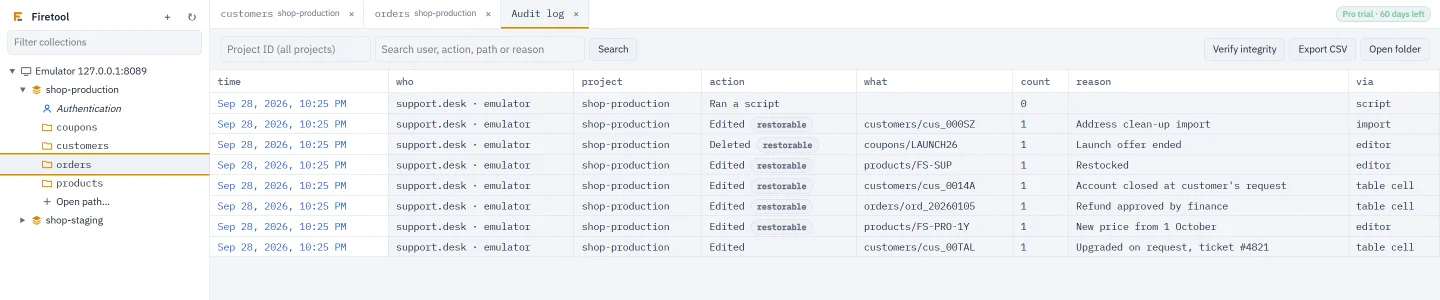
Open Tools, Audit log. Each row shows the time, who (the computer user and the Google account), the project, the action, what changed, how many items, the reason and where it came from. Blocked attempts appear as Blocked by policy, and changes with saved copies show restorable.
- Search: filter by Project ID (all projects) and by user, action, path or reason. Load older brings 200 more entries.
- Verify integrity: each entry includes a SHA-256 hash of the one before it, so an edited or removed line breaks the chain. The check reads the whole log from the first entry and says either that all entries check out, or where the problem is.
- Export CSV: saves the entries shown, with their hashes.
- Open folder: the log is kept as one file per month,
~/.firetool/audit/audit-YYYY-MM.jsonl, one JSON line per entry.
With Also write audit entries to _studio_audit on, each entry is also written as a document in the _studio_audit collection of the database where the change happened. That copy holds a summary (time, action, who, machine, up to 50 paths, count, reason and hash), not the saved document copies. Each one is one more Firestore write.
Restore from the audit log
- In Tools, Audit log, click an entry marked restorable.
- Choose Restore (it says how many documents), then confirm.
The documents are written back as they were before that change; any changes made to them since are replaced. Restoring is a change itself, so it needs Pro and follows the project's rules.
- Only documents with a saved copy come back. Documents the change created aren't removed.
- The account that made the change must still be added in Firetool.
- Authentication users can't be restored, though deleted accounts' details are in the entry.
- Very large single requests (over 1,000 documents) are logged without copies.
Questions
Is Firetool's read-only mode enough to protect production data?
It stops changes made in Firetool on that computer. Someone with write access in Google Cloud could still change data with another tool. For real enforcement, give support staff read-only IAM access, such as Cloud Datastore Viewer, and use Firetool's rules on top.
Does the production prompt appear for every document in a bulk job?
No. You type the project ID once when the operation starts, and the whole job, however many batches it sends, runs with it.
Can I see who changed a document last week?
Yes. In Tools, Audit log, type the document path or the collection name in the search box, and filter by project if you need to. Each entry shows who made the change, when, and the reason if one was asked for.
Related
- Security: how Firetool handles your keys, your data and the audit log.
- Manage Firebase Auth users: how the rules apply to Authentication changes.
- Bulk field changes: changes that keep restorable copies by default.
- Install: silent, per-user installs for IT.